Manage your team with My Organization
Organizations gives your team a shared workspace in Openda.

Getting Started
Latest Update:
November 12, 2026
Admins use the My Organization page to see who has access, invite colleagues and manage their access directly, without contacting Segmed. Customers and data partners get the same features.
Who can use My Organization
Only admins see My Organization. Everyone else keeps using Openda as usual.
An organization can have more than one admin, and there is always at least one. Admin rights apply only inside your own organization.
Find My Organization
1. Sign in to Openda at openda.segmed.ai.
2. In the left menu, select My Organization.
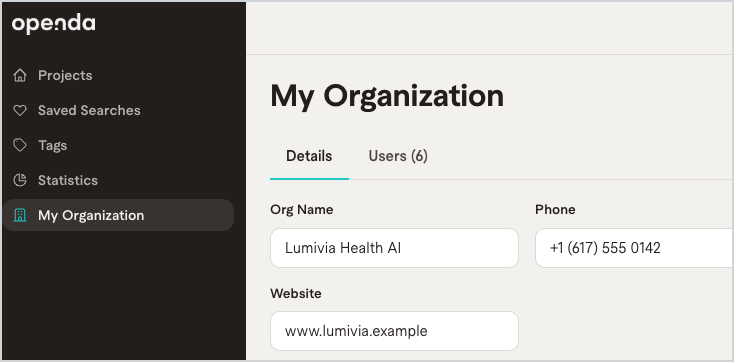
The page has two tabs: your organization's Details and its Users.
See who is on your team
The Users list shows everyone in your organization, with their name, email, role and status.
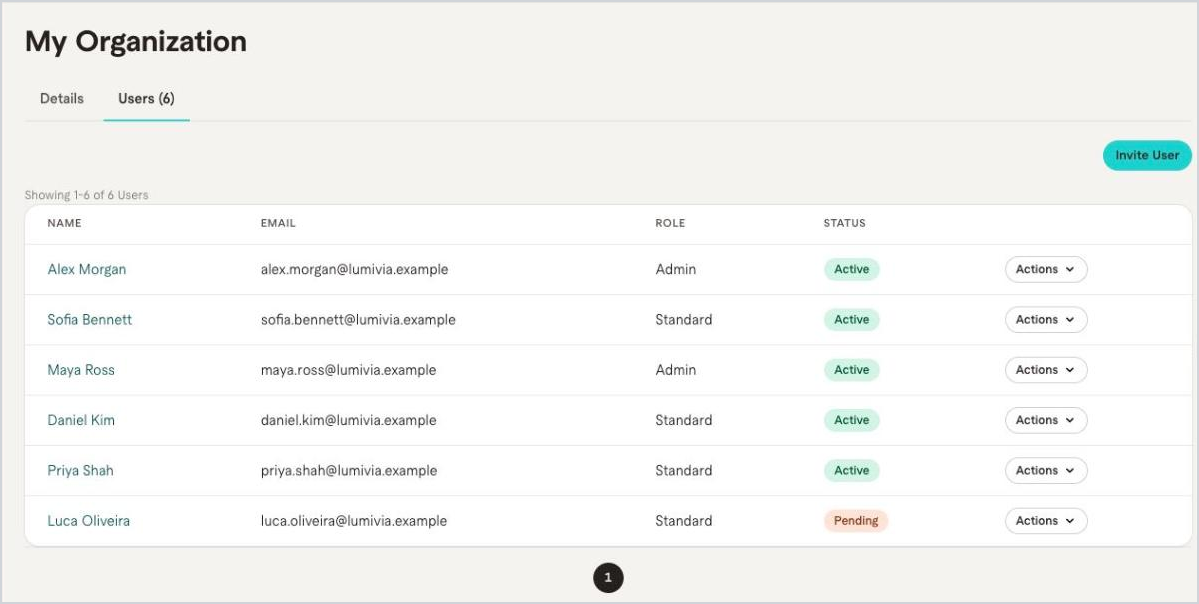
• Role: Admin or Standard.
• Status: shows whether a colleague is active, has a pending invite, is locked, revoked or deactivated.
You only see your own organization. The list shows who has access, not anyone's work: projects, saved searches, tags and orders stay private to each person.
Invite a colleague
1. Go to My Organization and open Users.
2. Select Invite User.
3. Enter your colleague's email address.
4. Choose their role: Standard or Admin.
5. Select Send Invite.
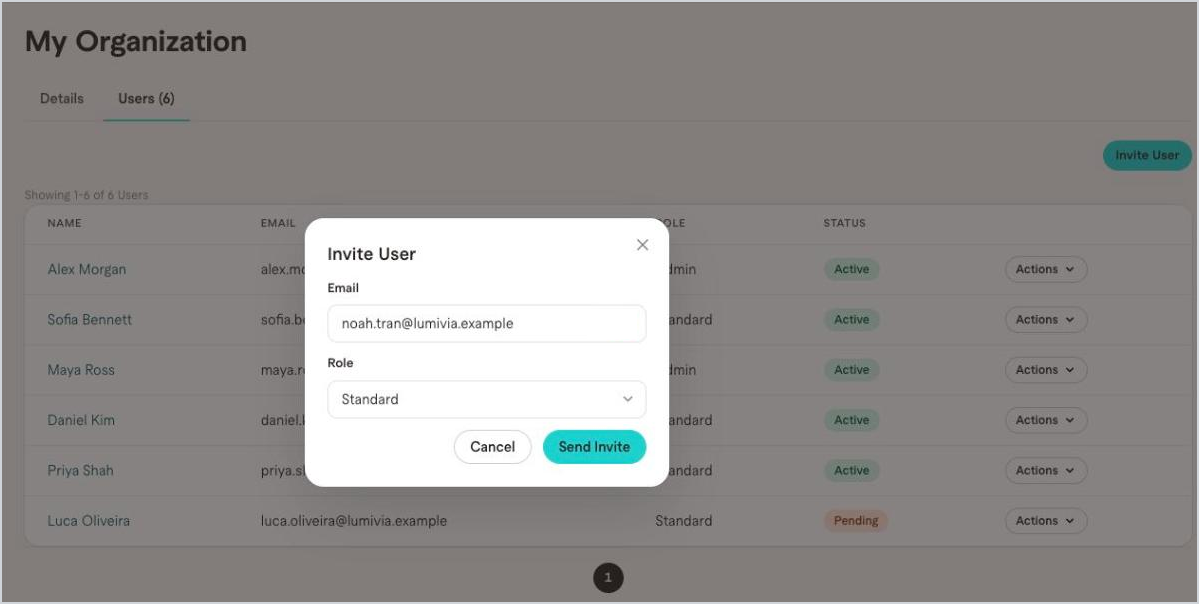
Your colleague appears in the list with a pending status until they accept.
What your colleague receives
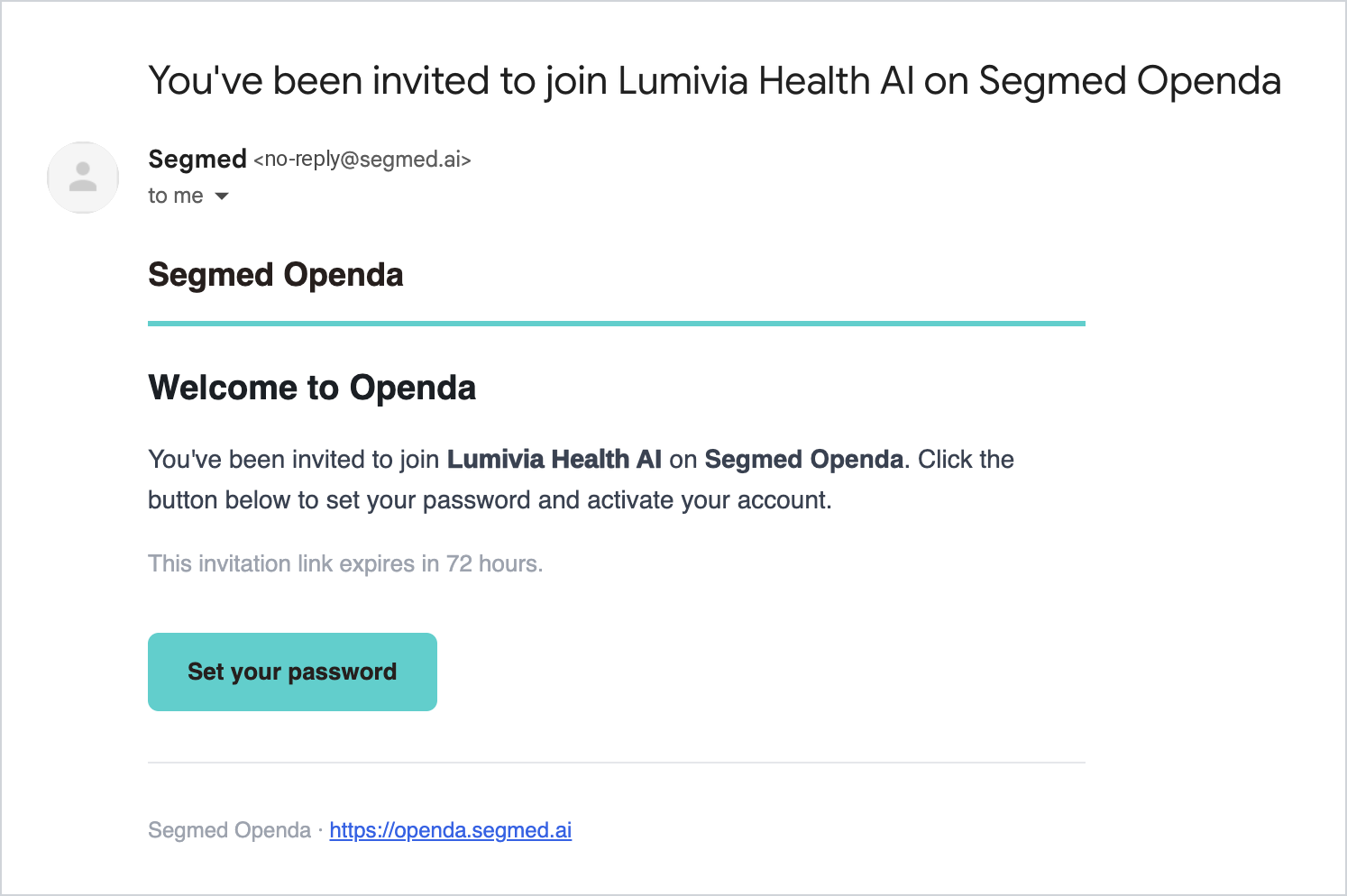
They get an email with the subject "You've been invited to join <your organization> on Segmed Openda" and a Set your password button. The link is valid for 72 hours. They add their name the first time they sign in.
Good to know
• You can invite any email address, including someone outside your company's domain, such as a contractor.
• Your colleague can sign in and work in Openda as soon as they accept. Data download access is turned on once Segmed approves their account.
• Inviting the same address again re-sends the invite, even if the first one expired.
• People who request access through the Openda website don't join your organization automatically. Segmed reviews every request, so an invite from you is the quickest route.
Resend or cancel an invite
Use this when an invite expired, got lost, or was sent to the wrong address.
1. In Users, find the colleague with a pending invite.
2. Open the actions menu next to their name.
3. Select Resend Invite or Cancel Invite.
Manage a colleague's access
In Users, open the actions menu next to a colleague's name and pick an action.
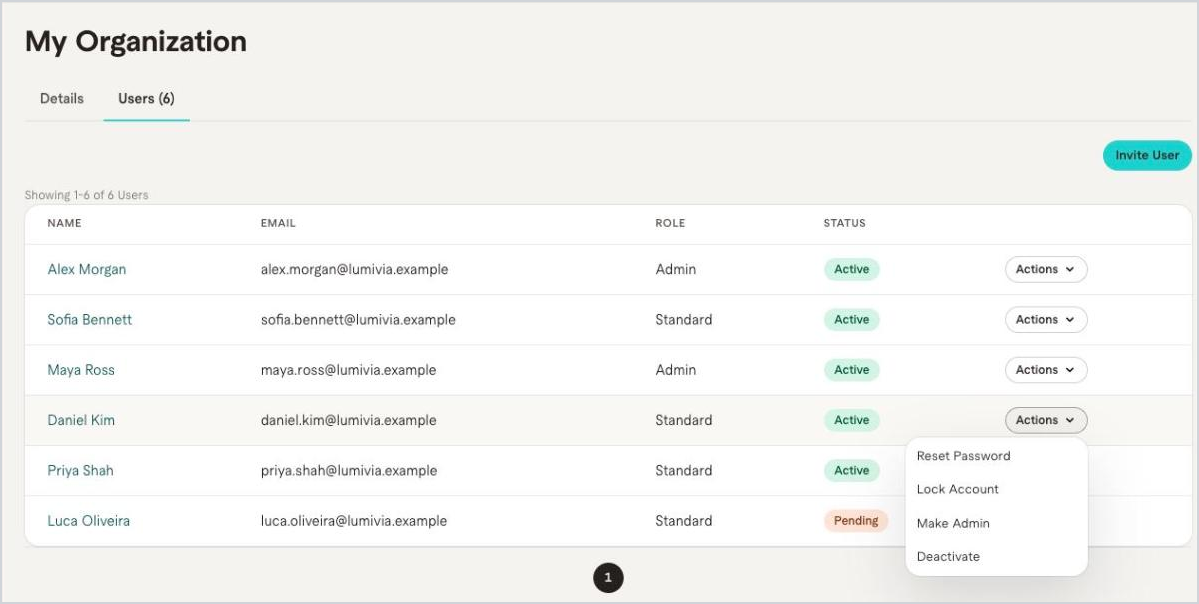
To change a colleague's name or role, select their name in Users. In Edit User, update First Name, Last Name or Role, then select Save.
When someone leaves your team, deactivate them. You can't permanently delete an active user.
Edit your organization's details
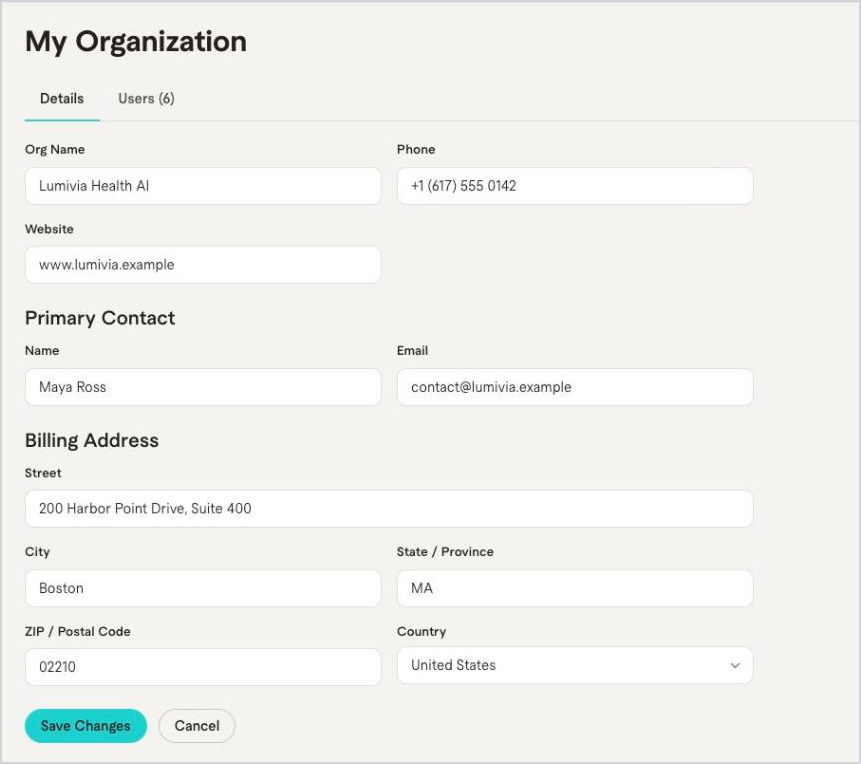
1. Go to My Organization and open Details.
2. Update any of these: organization name, primary contact, contact email, phone, website and billing address.
3. Select Save Changes.
Changes stay in Openda and don't update Segmed's account records. [if your billing or contract contact changes, also tell your Segmed key account.]
What only Segmed can do
For these, send an email to support@segmed.ai:
• Change a user's email address.
• Move a user to another organization.
• Permanently delete a user.
• Set up separate organizations for teams in different regions (handled case by case).
• Approve data download access for new accounts.
If you're not an Admin
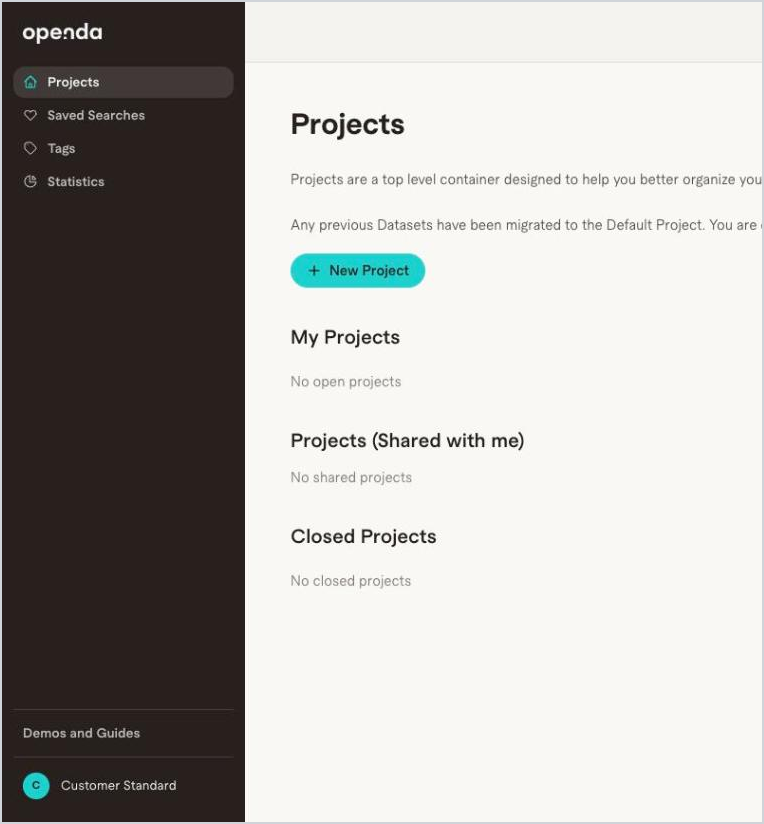
You won't see My Organization in your menu, and nothing changes in how you work. Your projects, saved searches, tags and orders stay as they are, private to you.
• Need a colleague added? Ask your organization admin. They can invite them directly.
• Need admin rights? Ask an existing admin to make you one.
• Not sure who your admin is? Send an email to support@segmed.ai.
Sign-in and security
Nothing changes in how you sign in: same address (openda.segmed.ai), same password, and no new setup.
• Invite only. New people join through an invite from their admin or the Request Access form, and Segmed reviews every access request.
• Private to your organization. You only see your own organization and its users.
• Stronger login security. Accounts lock after a few failed sign-in attempts, you're warned if your password appears in a known data breach, and access is re-checked more often in the background.
Multi-factor authentication (MFA) isn't part of this release. Enterprise single sign-on (SSO) is available for specific customers on request through their Segmed contact.
Frequently Asked Questions
Can my colleagues see my projects?
No. Projects, saved searches, tags and orders stay personal to each user. My Organization shows your organization's details and its users only.
Do I need to do anything when Organizations is turned on?
No. Segmed sets up your organization and its admin, and moves existing users in for you.
Can we have more than one admin?
Yes. Any admin can make a colleague an admin. Every organization always keeps at least one.
My invite expired. What now?
Ask your admin to resend it, or to invite your address again.
Someone left our team. What happens to their work?
When an admin deactivates them, their projects, orders and data stay where they are. Reactivating them gives everything back.
We have teams in several regions. Can each have its own organization?
Talk to your Segmed contact. Multi-region setups are handled case by case.
Need help?
Send an email to support@segmed.ai or contact your Segmed account manager.


